Messier 37 – Brightest Open Cluster in Auriga

Image

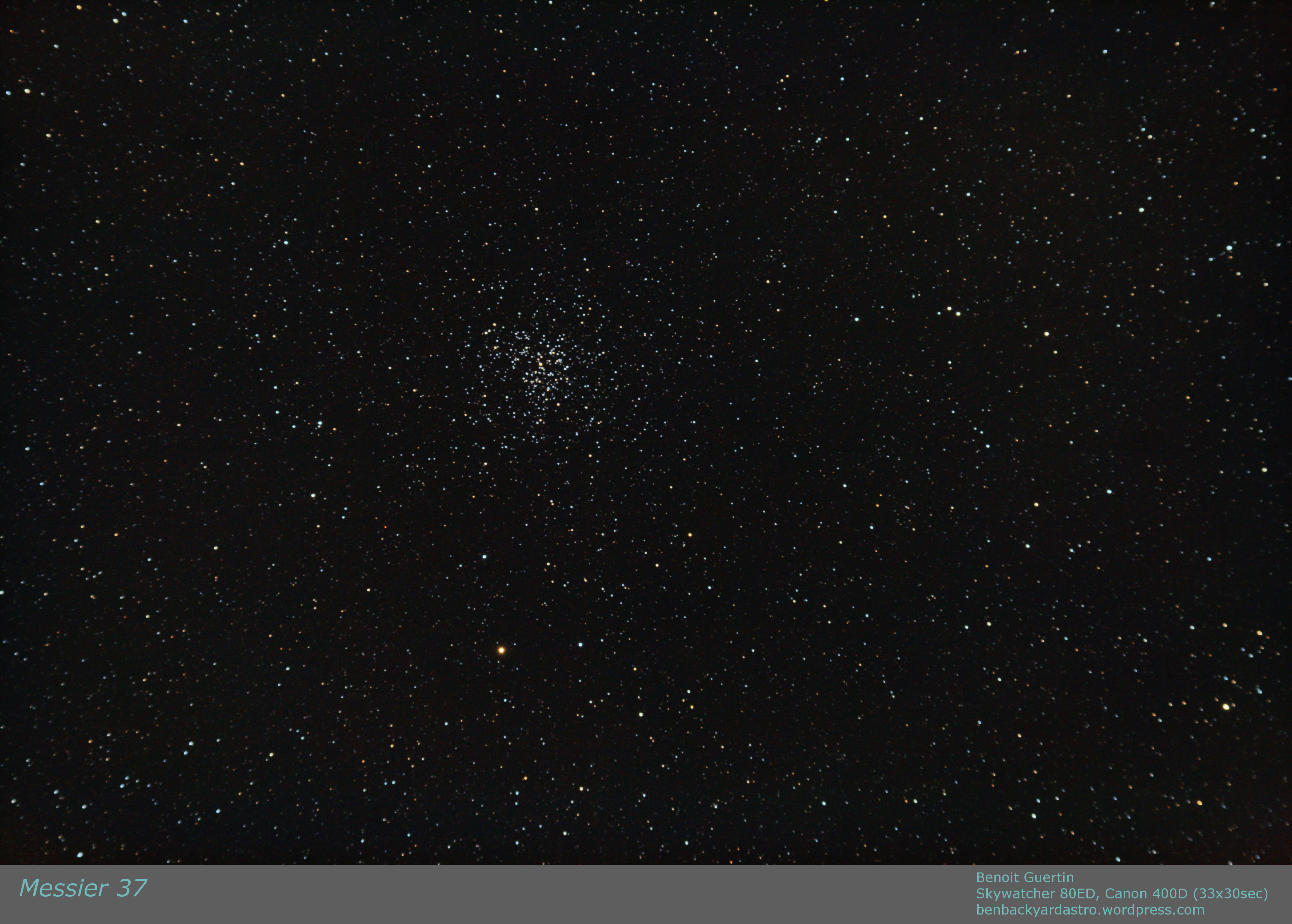
A few weeks ago I spent some time imaging the three bright open clusters in Auriga.  After Messier 36 and 38, I now bring you Messier 37.

Surveys indicated the cluster contains about 1,500 solar masses and about 500 identified stars.  As with M36 and M38 it is located about 4,500 light years from Earth.

Messier 37 - Open Cluster in Auriga

Messier 37 – Open Cluster in Auriga – Benoit Guertin

Large research telescopes often have too narrow field of view to capture open star clusters.  This is where us backyard astronomers with our gear can shine.

Skywatcher 80ED
Canon 400D
33 x 30sec (ISO 800)

Messier 38 and NGC1907 – Open Clusters in Auriga

Image

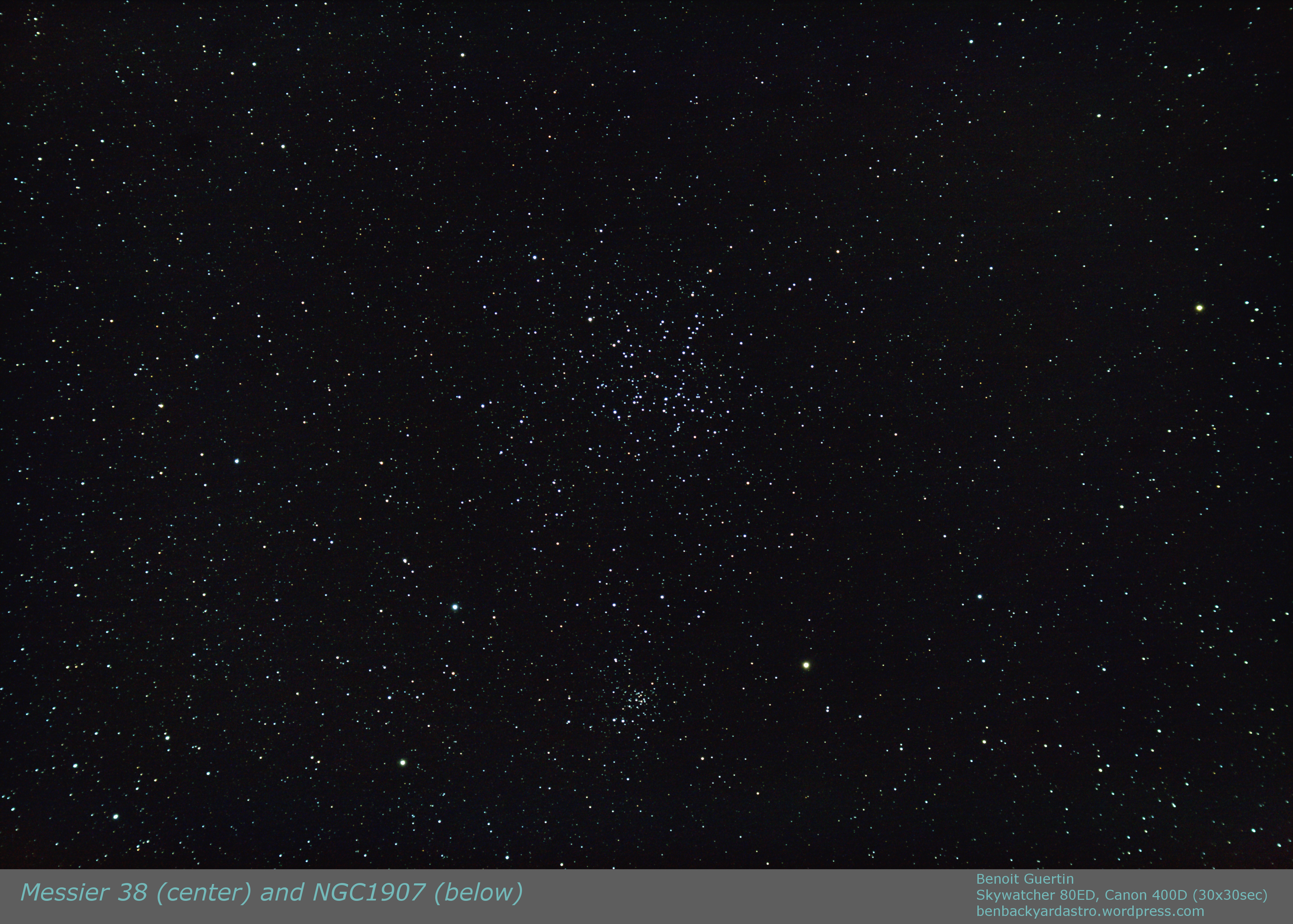
Following my previous post on Messier 36, a simple 2 degree slew of the telescope and I was centered on Messier 38 (NGC1912).  This open cluster measures 21 light years across ( 21′ apparent) or twice the size of M36.  It is also much older than M36 which is why you’ll find less hot blue stars within the group if you compare with M36.

Just half a degree below is an older and smaller open cluster NGC1907.  While some have speculated that they are locked together (a binary cluster?) this cluster is 500 million years old, almost twice the age of M38, hence were formed at different periods and most likely from different molecular gas.  This is just a chanced fly-by with no interactions.

Open Clusters Messier 38 and NGC1907

Open Clusters Messier 38 and NGC1907

Skywatcher 80ED
Canon Digital Rebel XTi (400D)
30 x 30sec (ISO 800)
Registration with IRIS
Post-Processing with GIMP

Messier 36 – Open Cluster in Auriga

Image

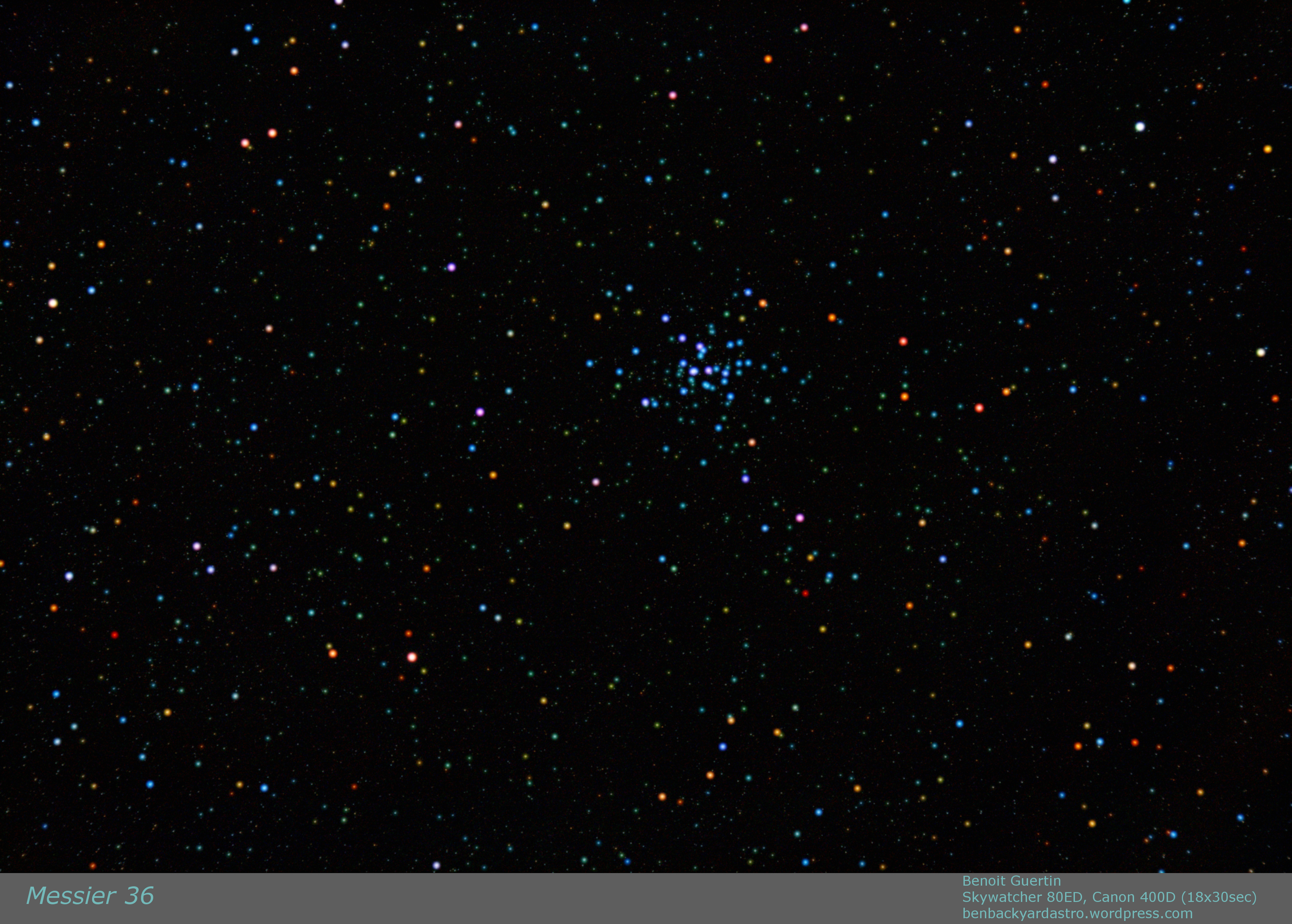
Open Cluster Messier 36 (NGC 1960) is located in the Auriga constellation.  Located about 4,100 light years from Earth, and 14 light years across, it has at least 60 members.  It is very similar to the Pleiades (M45) and if M36 was at the same distance (M45 is 10 times closer) it would be of similar magnitude.  Two other open clusters from Messier’s catalog are located nearby: M37 and M38.  The stars in the cluster are of spectral type B2, and fairly young: 25 million years.

Open Cluster Messier 36. Skywatcher 80ED, Canon 400D 18x30sec

Open Cluster Messier 36. Skywatcher 80ED, Canon 400D 18x30sec

The blue-ish stars contrast with the older yellow and orange stars in the background.  This can be further enhanced by using the SBLUR function in IRIS to selectively blur and enhance the colors of bright stars.  While the colors are exaggerated in the image below, it is nevertheless interesting to see the vast diversity of stars and their color.

Open Cluster Messier 36. Skywatcher 80ED, Canon 400D 18x30sec

Open Cluster Messier 36. Skywatcher 80ED, Canon 400D 18x30sec (SBLUR for colour)

Telescope: Skywatcher 80ED
Camera: Canon Digital Rebel XTi (400D)
Exposure: 18 x 30sec (ISO 800)
Date: 18Mar2016

Composition with Landscape

I’ve mentioned it before that you don’t need a fancy telescope and tracking equatorial mount to get into astrophotography.  Simply a camera on a tripod with a short focal lens can do wonders, especially with the high ISO settings in new cameras. A single 10 seconds exposition can reveal lots of stars, however to capture more photons a longer exposure is not better as the stars will become streaks.  But one can easily improve the image and get better signal/noise ratio by stacking multiple images.

However, there is one drawback to stacking multiple exposures if you decide to also capture the landscape: Earth rotates, therefore the sky moves while the landscape stays still.  If you align the images using the stars, then the landscape becomes a blur.  Not the end result that we want.  Luckily a quick composition with two layers and a mask solves everything.

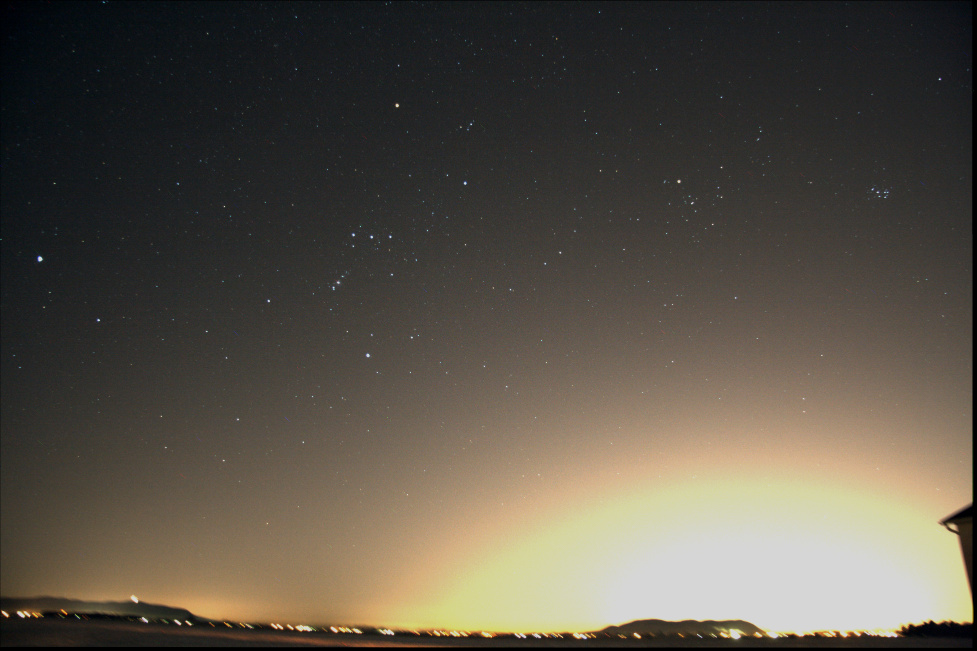
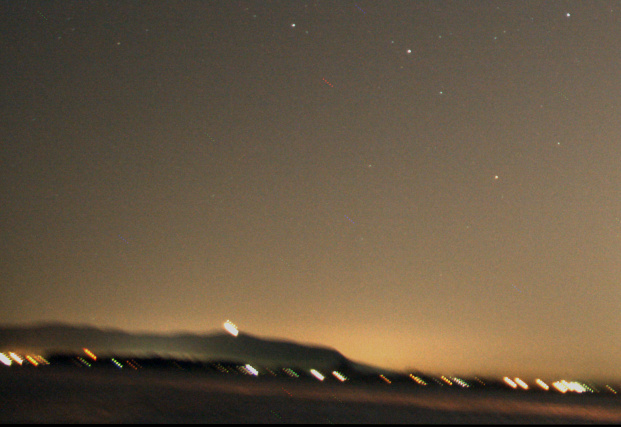
Below is a single 10 seconds exposure at ISO 800 with a 17mm F4 lens; you have the landscape with city lights and the stars above.  Yes that is Orion…

Single 10sec exposure (ISO 800)

Single 10sec exposure (ISO 800)

In order to improve my signal, I worked with IRIS to align and stack 5 frames, this reveals many more stars, but also amplified the light pollution.

Aligning and stacking 5 images. More stars appear.

Aligning and stacking 5 images. More stars appear.

Luckily within IRIS there is a function to remove sky gradient.  The algorithm takes a series of sample points and attempts to make the sky uniform.  Not bad, the images are not a hopeless case.
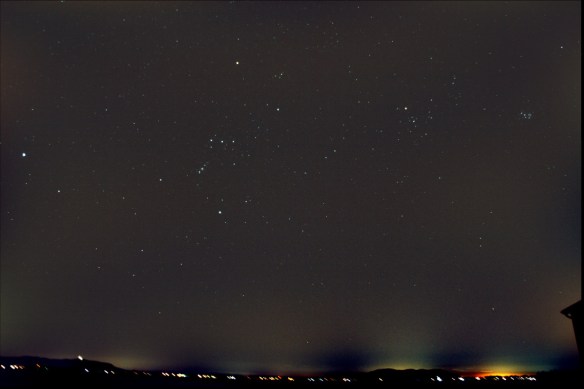
Removing the sky gradient with IRIS

Removing the sky gradient with IRIS

As mentioned above, the alignment was performed with the stars, hence the background is now blurring.  Below is a close-up.
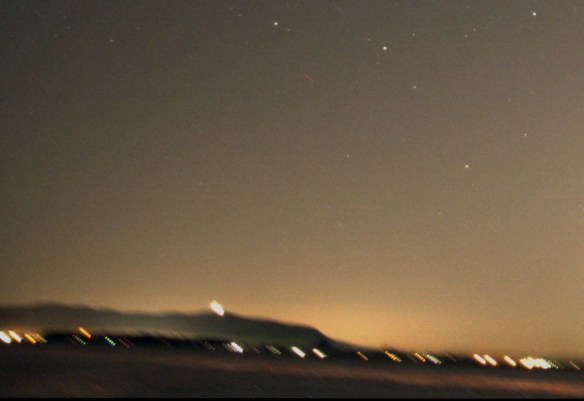
But when aligning on stars, the landscape blurs.

But when aligning on stars, the landscape blurs.

That is just 5 images, stack a much larger quantity or with more time between frames and it will only get worse.  It becomes pointless to shoot with the landscape if the end result is blurry.  Luckily working with layers in a photo editor can easily solve the issue.  We want to keep the stars from the stacked image, but the landscape from a single frame.  Follow these easy steps:

  1. Load into your base layer one of you single frames.  This is what will be used for the landscape.
  2. Load into a new layer your stacked image.  As your stacked image contains more and brighter stars select to Lighten Only instead of normally adding both layers.  You can play with the brightness of the stacked layer, and/or darken the base layer to get the desired blending.
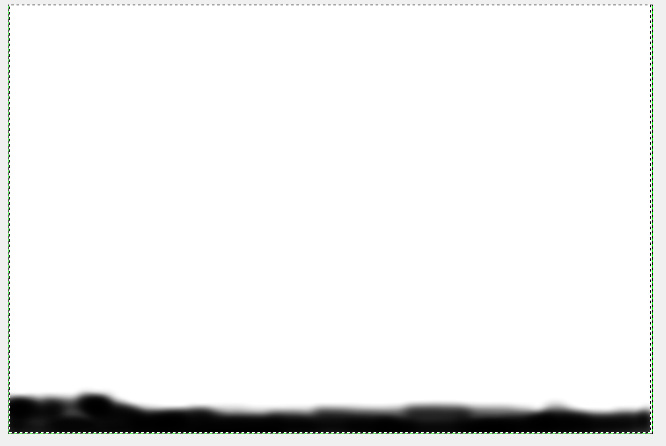
  3. Create a mask to the stacked layer such that the blurred landscape is not permitted to show through.  See image below, I simply grabbed the airbrush and blackened the landscape area in the mask such that it will not show through the layer.  Note that the I only edited the mask, not the image itself.
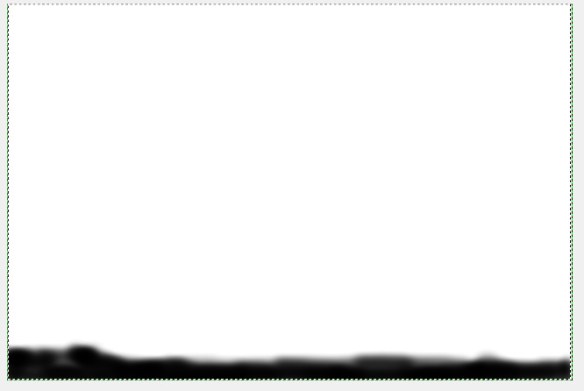
Creating a mask for my layer: white is transparent, black will block

Creating a mask for my layer: white is transparent, black will block

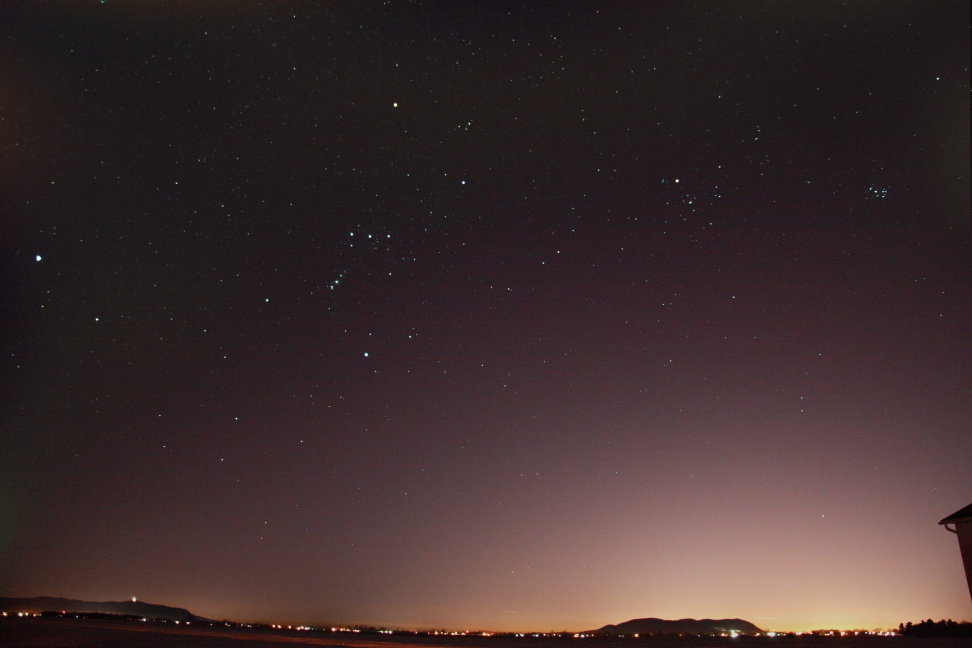
The end result, is improved image of the sky, and a landscape that is still sharp.

Both layers added with the mask

Both layers added with the mask

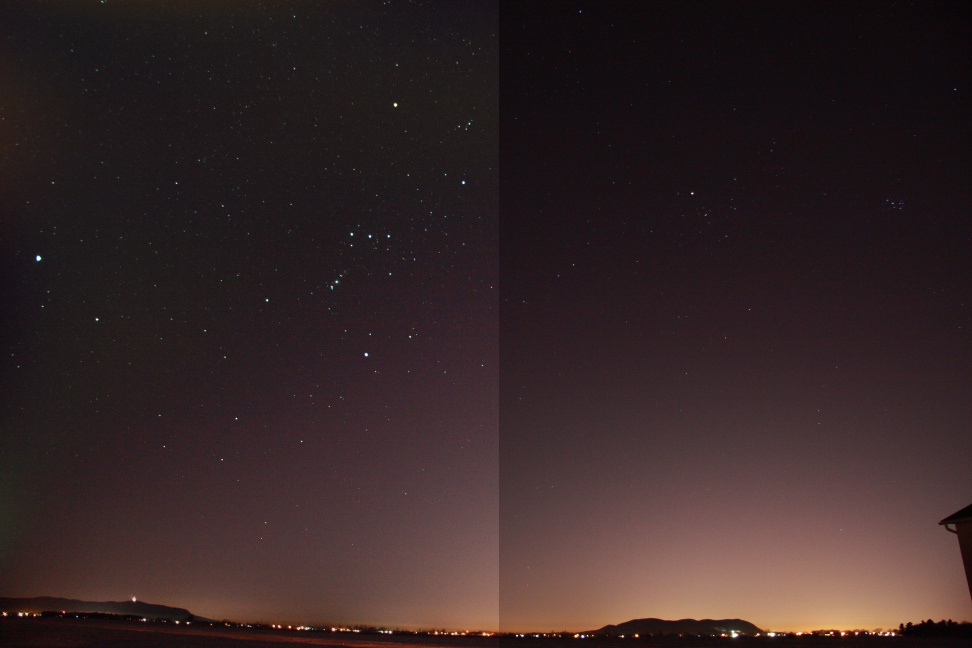
Below is a comparison the composition with stack and layer (left) and a single shot (right).  We are able to achieve both of our goals of getting more stars (more signal) while keeping the landscape from becoming a blur.

Comparing the composition with layers (left) and single shot (right)

Comparing the composition with layers (left) and single shot (right)

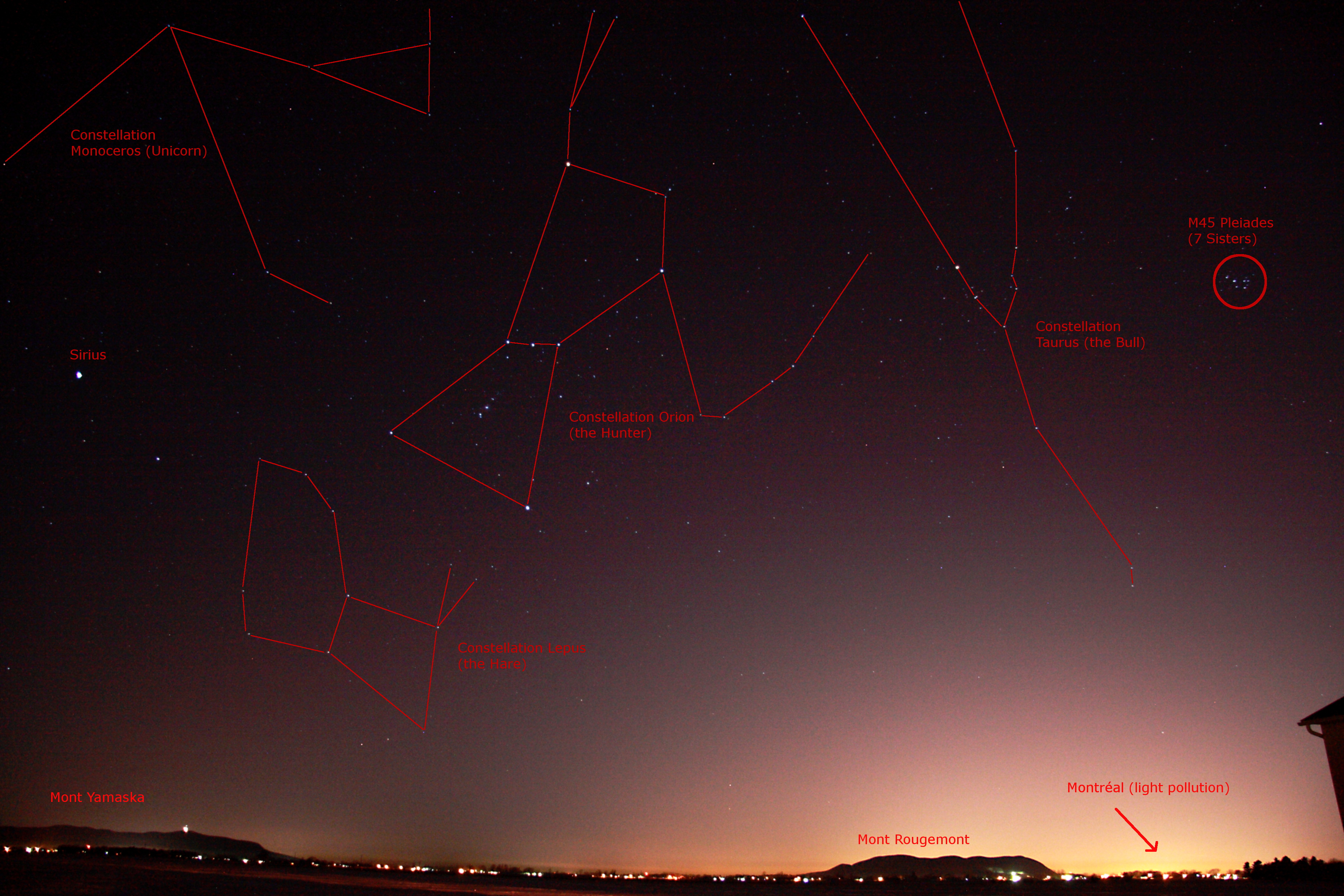
And why not take some time to identify some key features in the image.

Constellations Orion and Taurus above the landscape.

Constellations Orion and Taurus above the landscape. (Click to open)

Changes in Lunar Size

Image

While doing some organization in my astrophotos I came across a picture composition that I created back in September 2015 following the Super Moon Lunar Eclipse, but which I never posted.

I had selected two Lunar Eclipse photos that I had taken with the exact same equipment, but on different year and wanted to see the difference in size with this “Super Moon”.  Was it really that much bigger…

Lunar Size Comparison Between February 2008 and September 2015 Lunar Eclipse

Lunar Size Comparison Between February 2008 and September 2015 Lunar Eclipse
– Benoit Guertin

The Moon’s orbit is elliptical and eccentric which causes the Moon’s distance to vary by 50,200km from perigee (closest) to apogee (furthest).  The end result is a 12% change in apparent diameter as viewed from Earth.  The above image only shows a 7% difference as while the background Moon was taken at perigee (famed Super Moon) the foreground was an arbitrary reference of the February 2008 lunar eclipse.

Telescope: Skywatcher 80ED (600mm)

Tripod and a Camera? Make a TimeLapse

Video

You don’t need a telescope to enjoy astro-photography.  All it takes is a camera, a tripod and a timer remote controller to take interval images without you having to be there.  I know that most of the image taking is done with the camera connected to a computer.  But this remote controller allows for control of the shutter in the BULB setting without a laptop.  See it as a “grab-n-go”, travel-light type of accessory to the camera.

Canon_tc_80n3_remote_control

Set it up to take a large sequence of shots and you got the makings of a timelapse video.  Because there is no tracking with the tripod, keep the exposures under 10 seconds.  Then use video editing software like Microsoft Movie Maker to covert all those images into a video (see my article here).

It’s always interesting to analyse your frames to determine what you’ve capture, to identify key or important elements.

Wide field of the sky, mountains and horizon from a Montreal south sore suburb. March 4th, 2016. Benoit Guertin

Wide field of the sky, mountains and horizon from a Montreal south sore suburb.
March 4th, 2016. Benoit Guertin

Unfortunately, my camera battery wasn’t fully charged, and the cold drained it quickly, therefore only got about 100 frames in.

“Super” Moon Just Prior to the Eclipse

Image

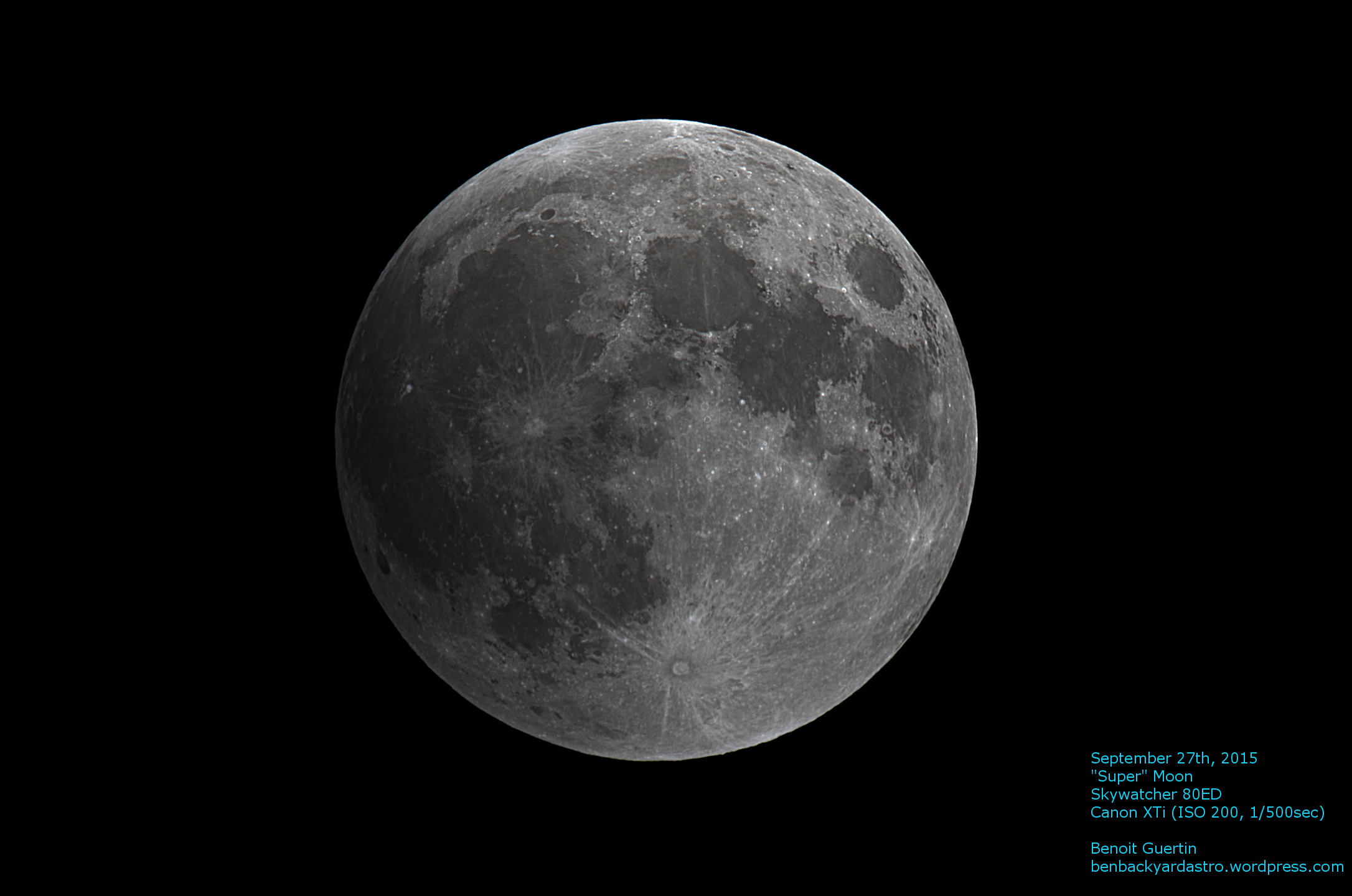
On September 27th, there wasn’t just a lunar eclipse… There was a large magnificent full moon in the sky.  Therefore once I had all my gear setup and ready for the show, I decided to snap a few frames before the start of the eclipse.

The sky was wonderfully clear and the seeing great.  Through the telescope I noticed very little turbulence in the air.  Below is a stack of 11 frames, to which I adjusted the color, the levels and played with the wavelets sharpening to get some detail out of the lunar surface.

Click on the photo for a full resolution version.

September 27th Full Moon

September 27th Full Moon

September 27th 2015 – Lunar Eclipse

Image

Transferring over 300 photos (2.5GB) from the old astro-laptop via USB key to my main PC will take some time (30 minutes just to transfer 1.0GB on the key).  Therefore the work towards making a time lapse video will be tomorrow.

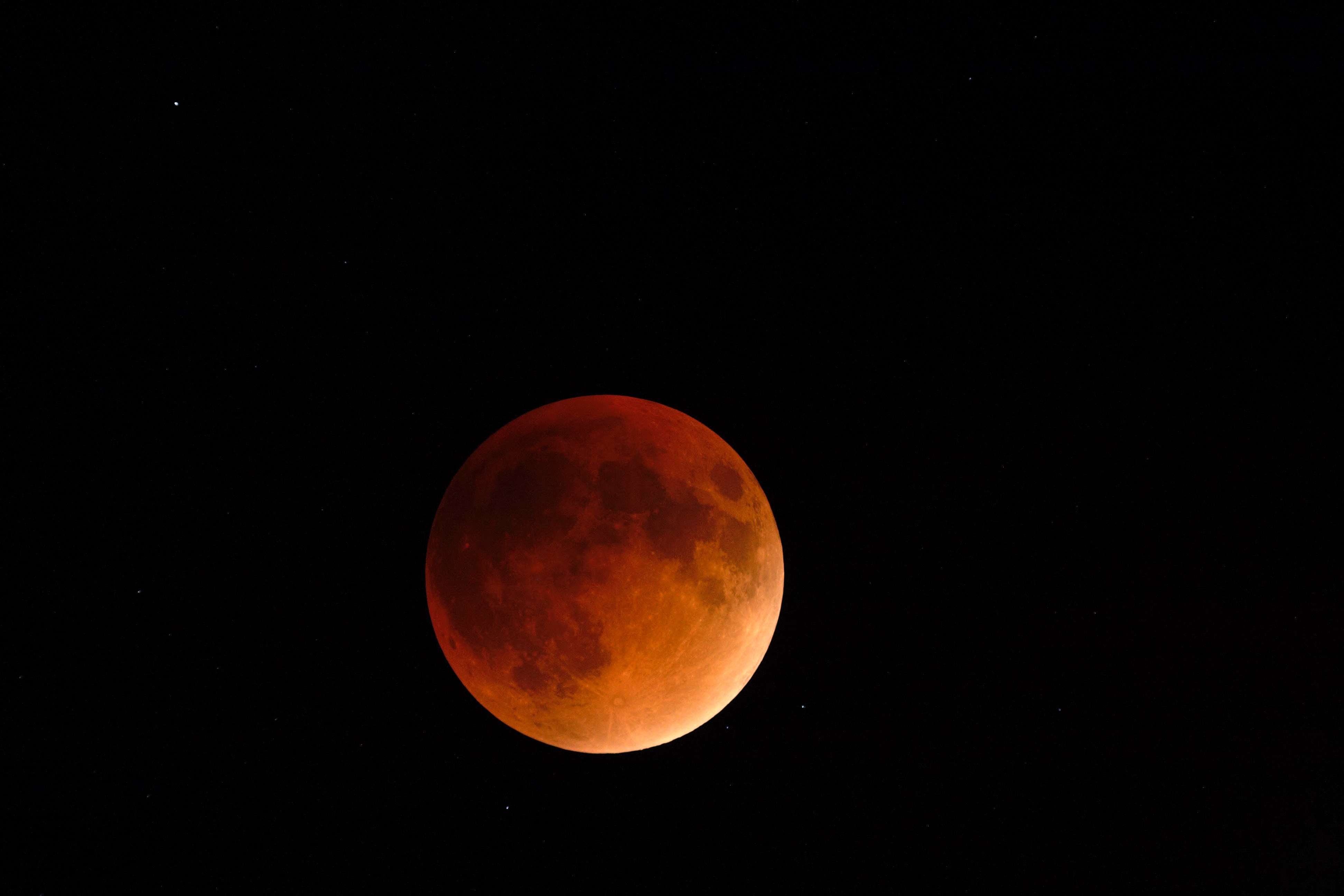
In the meantime here is one quick pick from the lot of photos taken with the Canon mounted on the telescope.  Did a quick stretch and level adjustment, just so I’d have something to show before going to bed.

September 27th 2015 Lunar Eclipse

September 27th 2015 Lunar Eclipse

Time-lapse Video with Microsoft Movie Maker

Creating a time-lapse video out of your individual photos is a simple matter with Microsoft Movie Maker.  And the cool thing is that it will work with Canon RAW .CR2 format files, so no need to convert them to JPG ahead of time.

The following steps are performed with Windows8.

Step 1 – Select the sequence of images in Microsoft Photo Gallery

timelapse01Step 2 – Under Create select Movie.  This will automatically launch Microsoft Movie Maker with the individual photos loaded in a new Movie Maker Project.
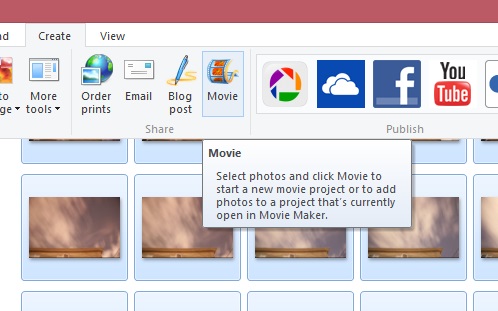
timelapse02

New Movie Maker Project createdtimelapse03

Step 3 – Under Edit Video Tools, change the duration between frames to a value less than 1.0- example 0.20.

timelapse04Step 4 – Save your movie in the format and resolution you wish.  Voila!  And why not add a title, caption and a soundtrack to go the extra mile.

Therefore set your camera on a tripod and start taking some pictures of the night sky.